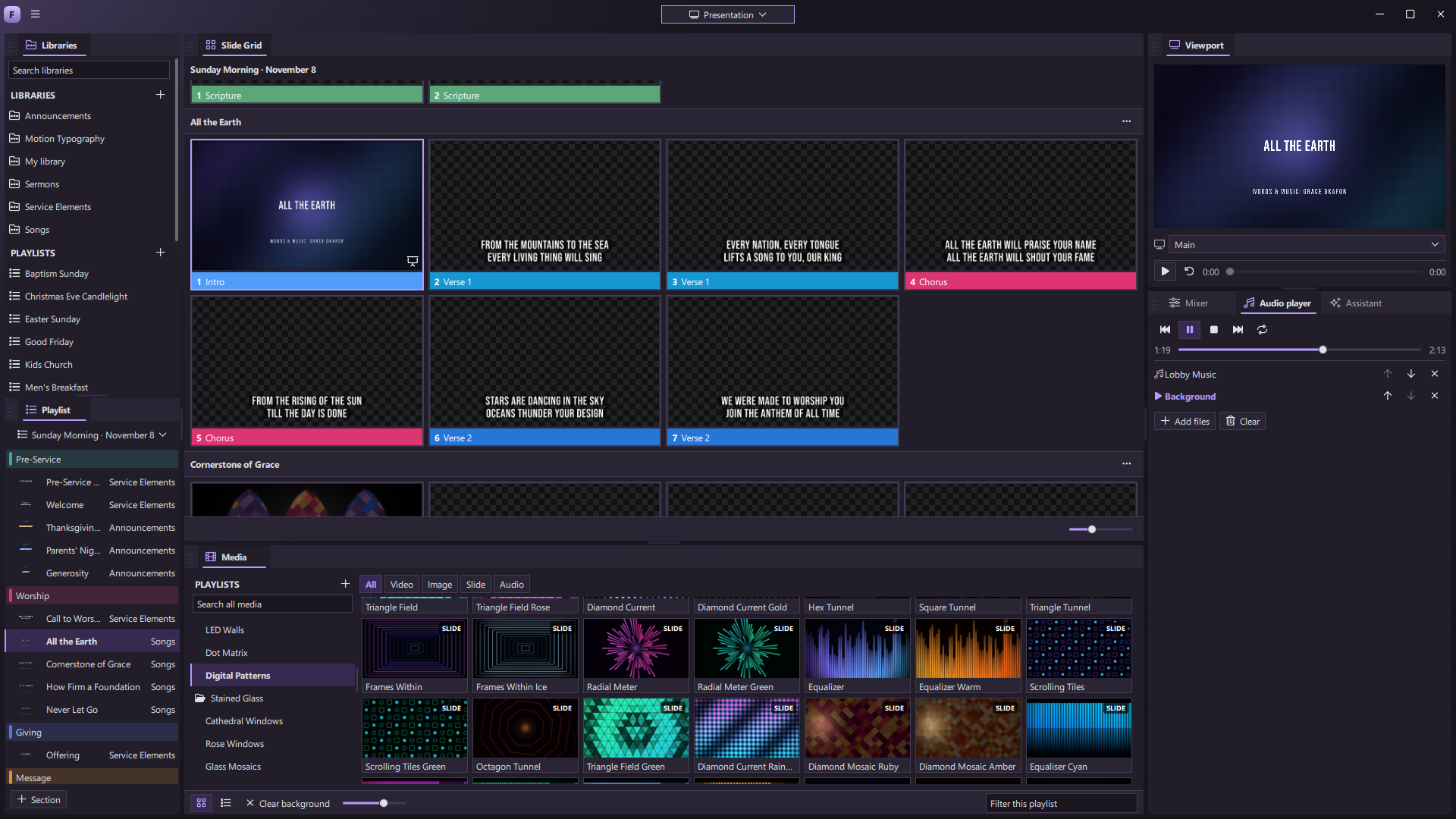
 THE FORSHOW PRESENTATION VIEW
The whole show, in your hands.
From the first walk-in slide to the last song, keep every cue in one clear running order.
Libraries & playlists
Bring presentations together, add sections, and keep the service or event in order.
Bring an existing deck
Import PowerPoint as editable content or keep the original look as slide pictures.
Lyrics in minutes
Paste a song or reading, split it into slides, then set the look once.
Groups & arrangements
Bring a chorus back as often as you need without copying it.
Themes for every slide
Start with a design, pour in your words, and keep the result editable.
Builds & show control
Reveal a line on click, schedule an advance, or let MIDI and a timeline drive the moment.
Design motion that belongs to your show.
Make titles, lyrics, lower thirds, countdowns, and visual backgrounds where you run them.
Live canvas
Edit text, shapes, images, video, masks, gradients, and layered objects directly.
Effects with range
From soft glow and film texture to repeaters, kaleidoscopes, particles, and procedural surfaces.
Animation in your control
Build in and out, keep elements moving, or fine-tune keyframes.
Transitions with character
Move between moments with cuts, fades, wipes, pushes, zooms, and more.
Made to keep changing
Adjust a design for the next event or export a finished slide as a video when you need one.
A growing preset library
Start from editable motion designs instead of a flattened video. Our launch goal is 1,000+ free presets.
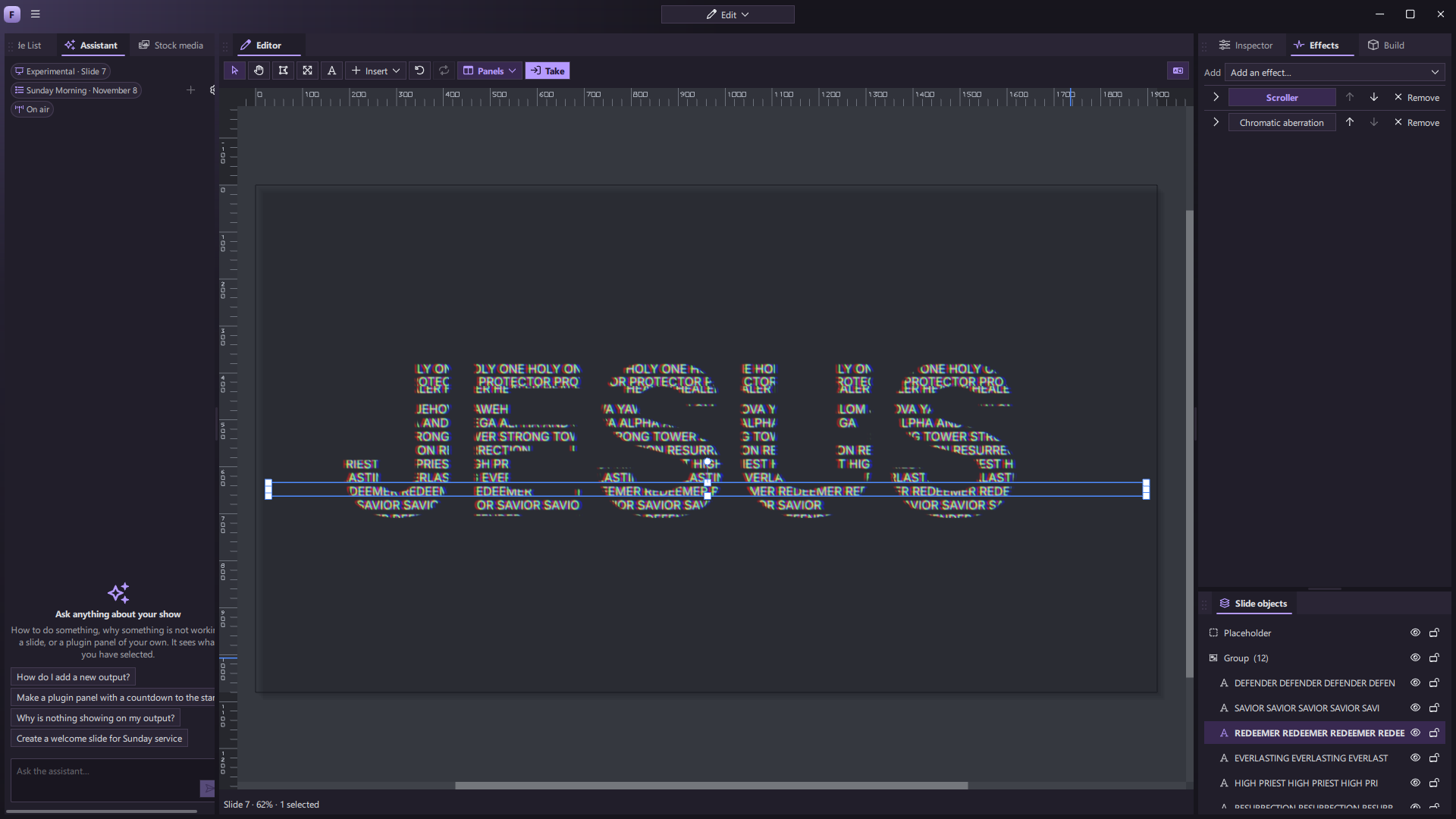
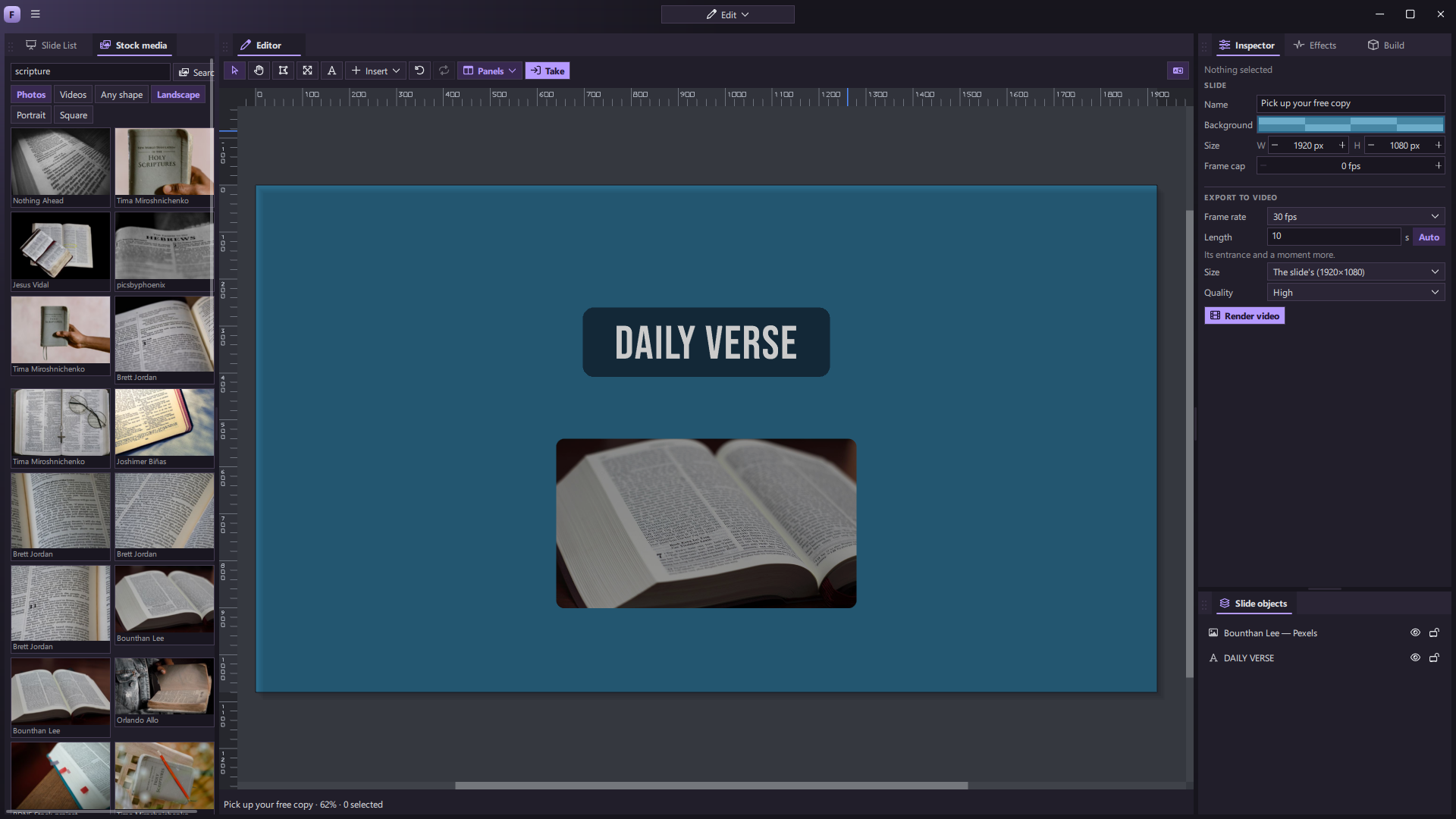
Design that keeps moving.
Watch effects and motion backgrounds running inside ForShow. Shape the look in the editor, then bring it into the presentation.
Captured from the app in development. Motion plays silently.
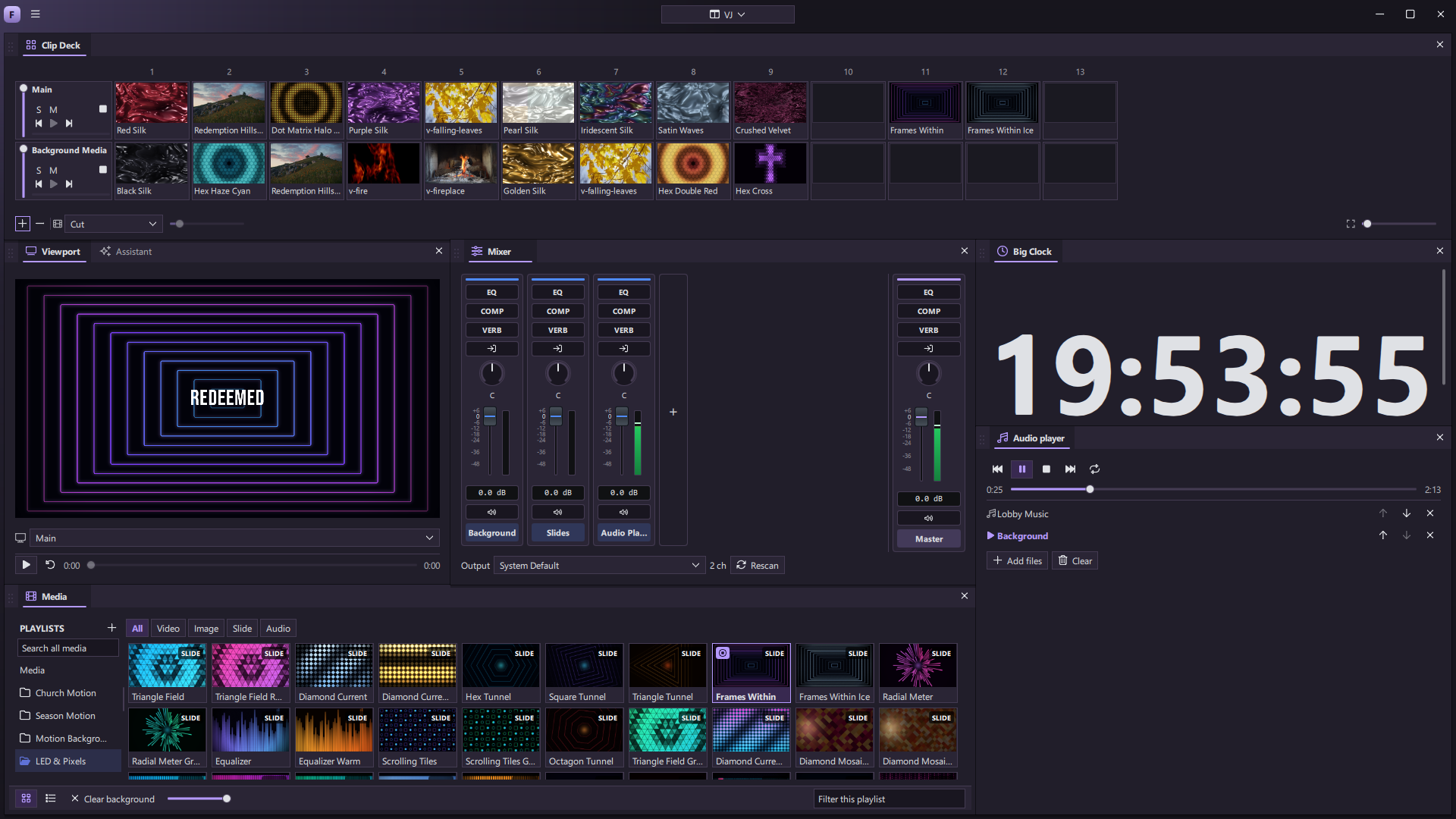
Mix visuals as the moment unfolds.
The VJ Clip Deck puts clips and slides on live layers, ready to play, blend, and change in the moment.
A deck for every layer
Arrange clips in rows for the layers you control, with each look ready under your hand.
Launch a whole look
Trigger one clip or launch a column to change several layers together.
Blend the picture
Fade a layer in, solo a look, mute one, or clear it when the moment changes.
Keep video in motion
Play, pause, step through, and scrub the clip on a layer.
Choose the changeover
Use each clip’s transition or set a move for the whole deck.
Make it part of the show
Bring slides and media onto the deck, then trigger clips with cues, macros, or MIDI.
A video engine made for live work.
Move between footage, motion backgrounds, slides, and graphics without sending the show through another app.
Video where it belongs
Run a clip as a slide, hold it behind the program, or place it inside a live design.
A media library with range
Organize video, images, audio, and animated slides into media playlists.
Shape each clip
Set trim, loop, soft loop, fit, color, and sound for the way it should play.
Layer the live picture
Combine footage with titles, lyrics, effects, cameras, and other visual layers.
Transitions for the moment
Cut, fade, dissolve, wipe, push, zoom, and more as the show changes.
Watch what is running
Preview outputs and use live transport controls while the picture stays on air.
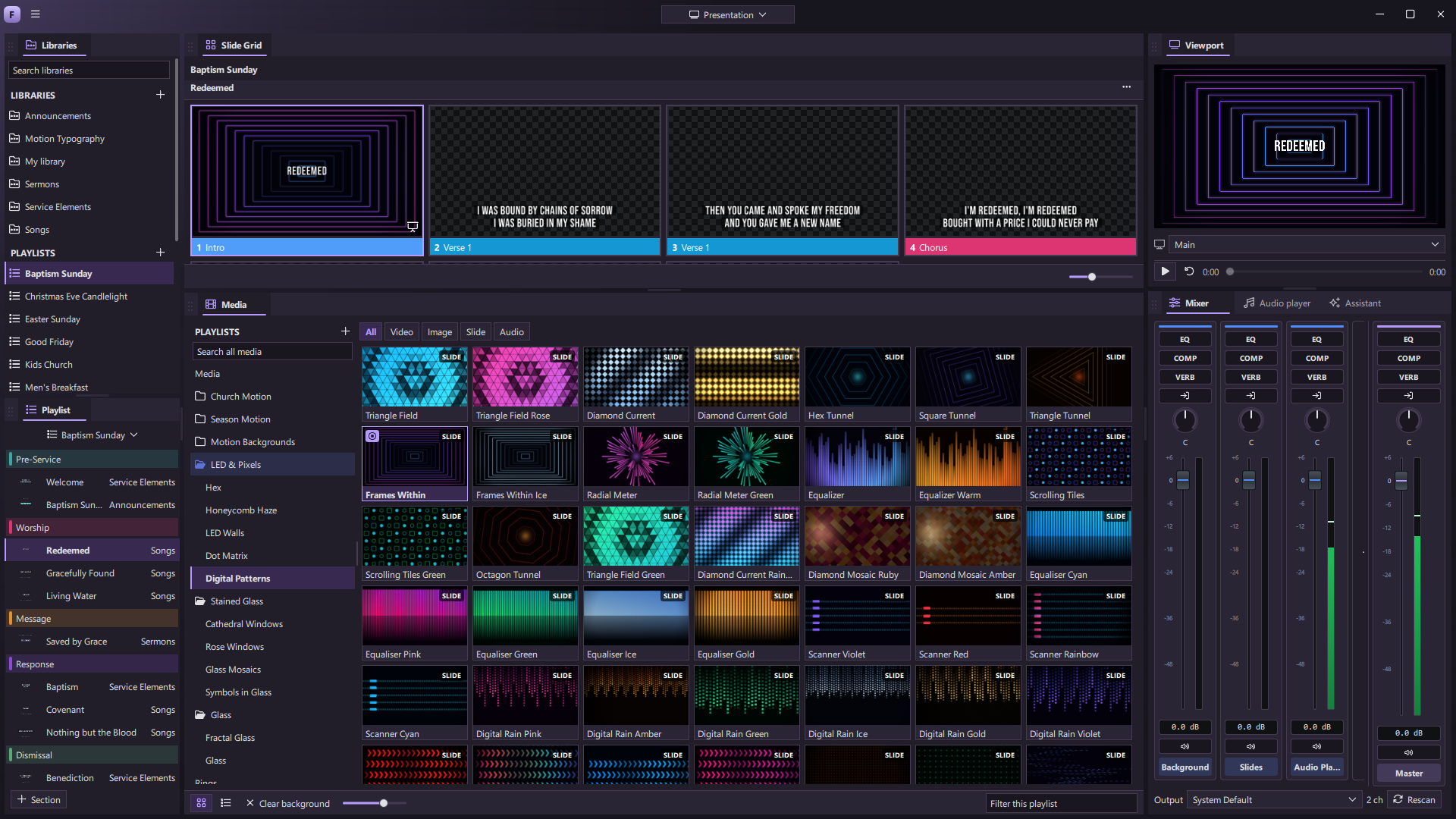
A workspace that fits the person running it.
Give a volunteer the essentials and a lead operator the full control room, one click apart.
Shape every layout
Dock, split, float, duplicate, or pop out panels onto another display.
Keep multiple desks
Save named layouts for presentation, design, broadcast, or a custom workflow.
Monitor your way
Duplicate previews to keep the main output, stage screen, and stream in view.
Stay on air
Change layouts and browse content without disturbing the live cue.
Find your way back
Review document history and undo creative changes as a show evolves.
Set the mood
Choose an interface palette or shape your own workspace theme.
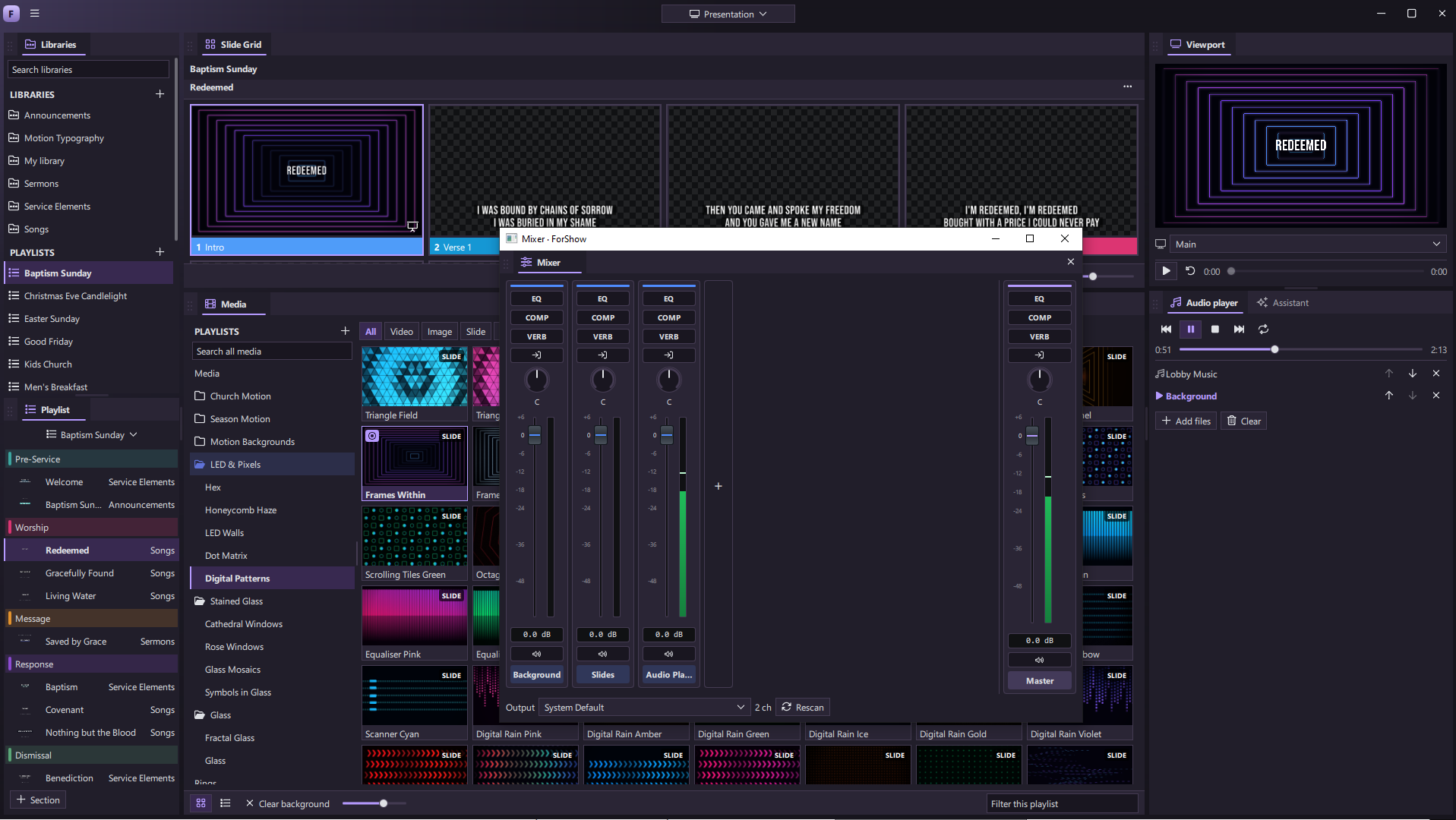
One show. The right picture on every screen.
Send the room, the people on stage, and the online audience what each needs to see.
Independent outputs
Choose layers, a theme, language, color adjustment, and placement per output.
Stage displays
Show current and next slides, clocks, countdowns, and a message from the booth.
Multiple languages
Keep translations together and choose the language or bilingual view for each screen.
Cameras & media
Layer imported clips or NDI camera feeds behind slides and titles.
Fit the venue
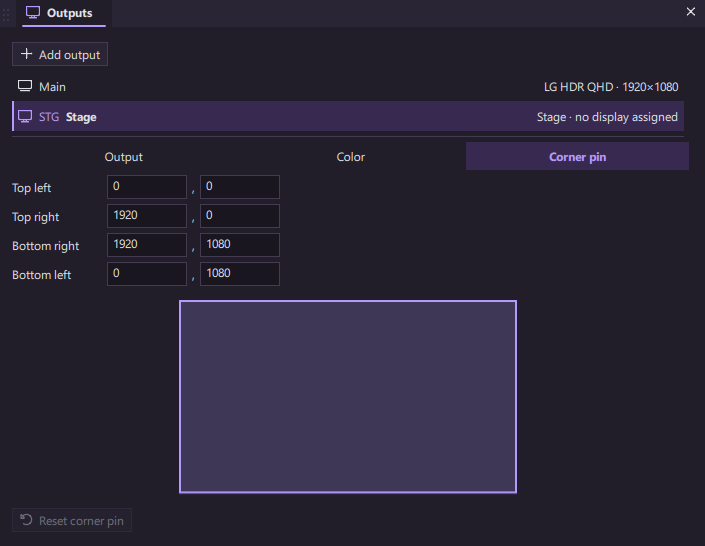
Adjust color and position for the display, including a four-corner fit for tricky surfaces.
A view for the operator
Watch different outputs side by side before the next cue goes live.
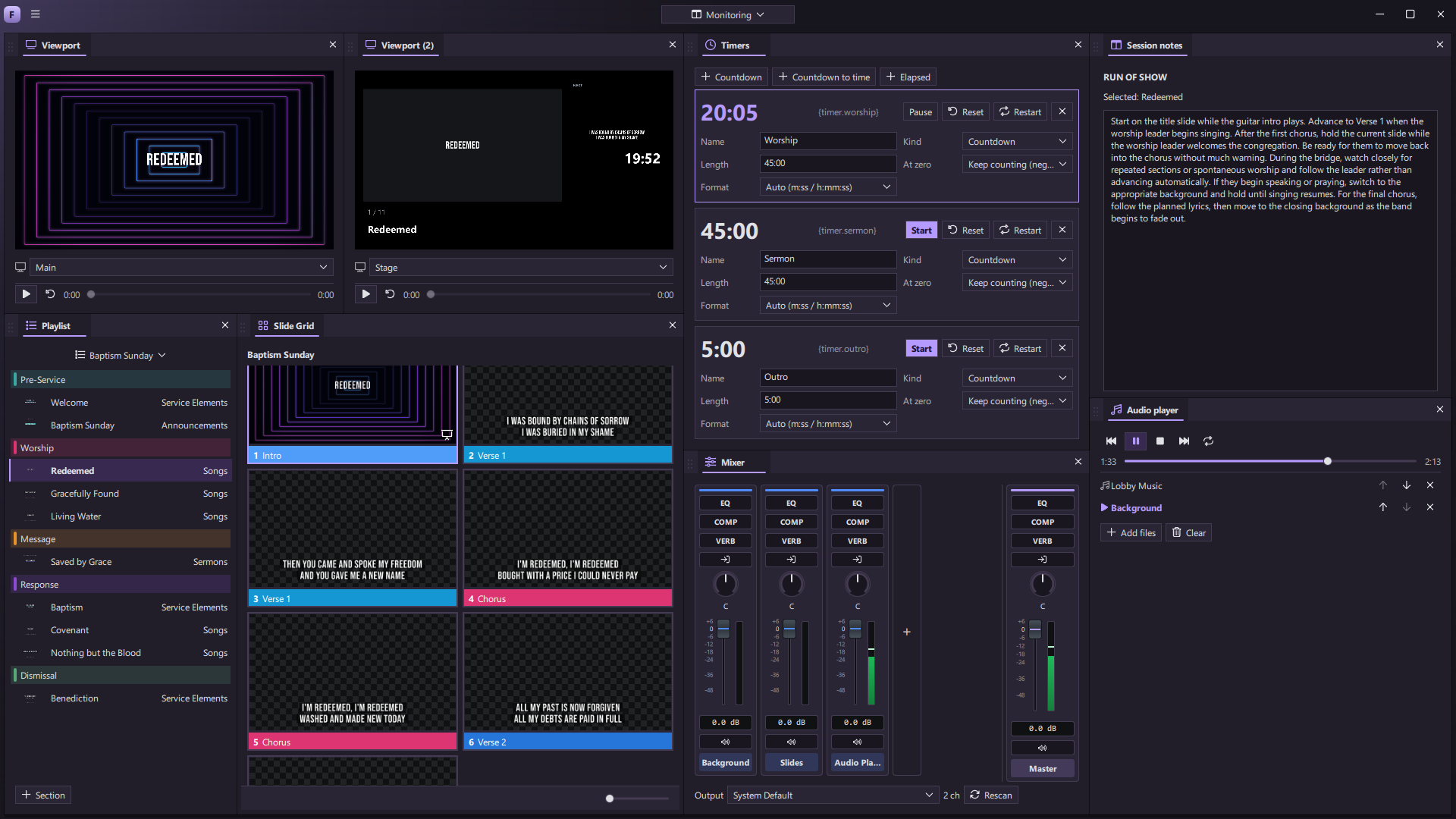
Sound, recording, and streaming belong here too.
Build a complete live production without passing your program through a chain of apps.
Explore ForStreamA real mixer
Balance slides, media, music, and output feeds with routing and familiar audio tools.
Media ready on cue
Organize clips, stills, and audio into a library and playlists, then take them behind the show.
Independent music
Run a track queue on its own transport while the slides keep moving.
Local recording
Capture a polished program file for sharing after the event.
A picture for the stream
Compose and mix for the audience online while the room sees what it needs.
ForStream
Built for one upload to the cloud, reliable buffering, and delivery to multiple destinations.
Make the software feel like yours.
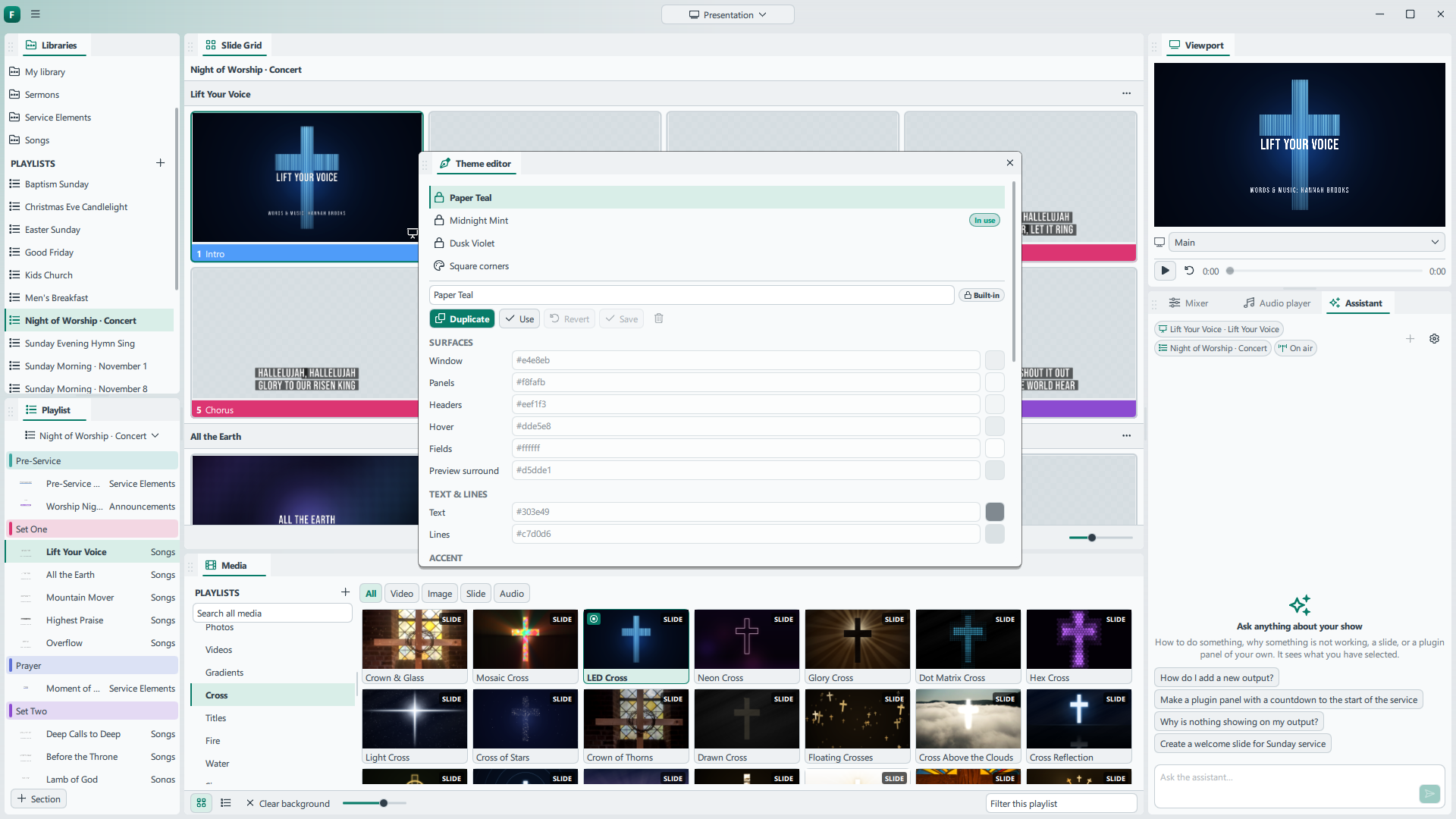
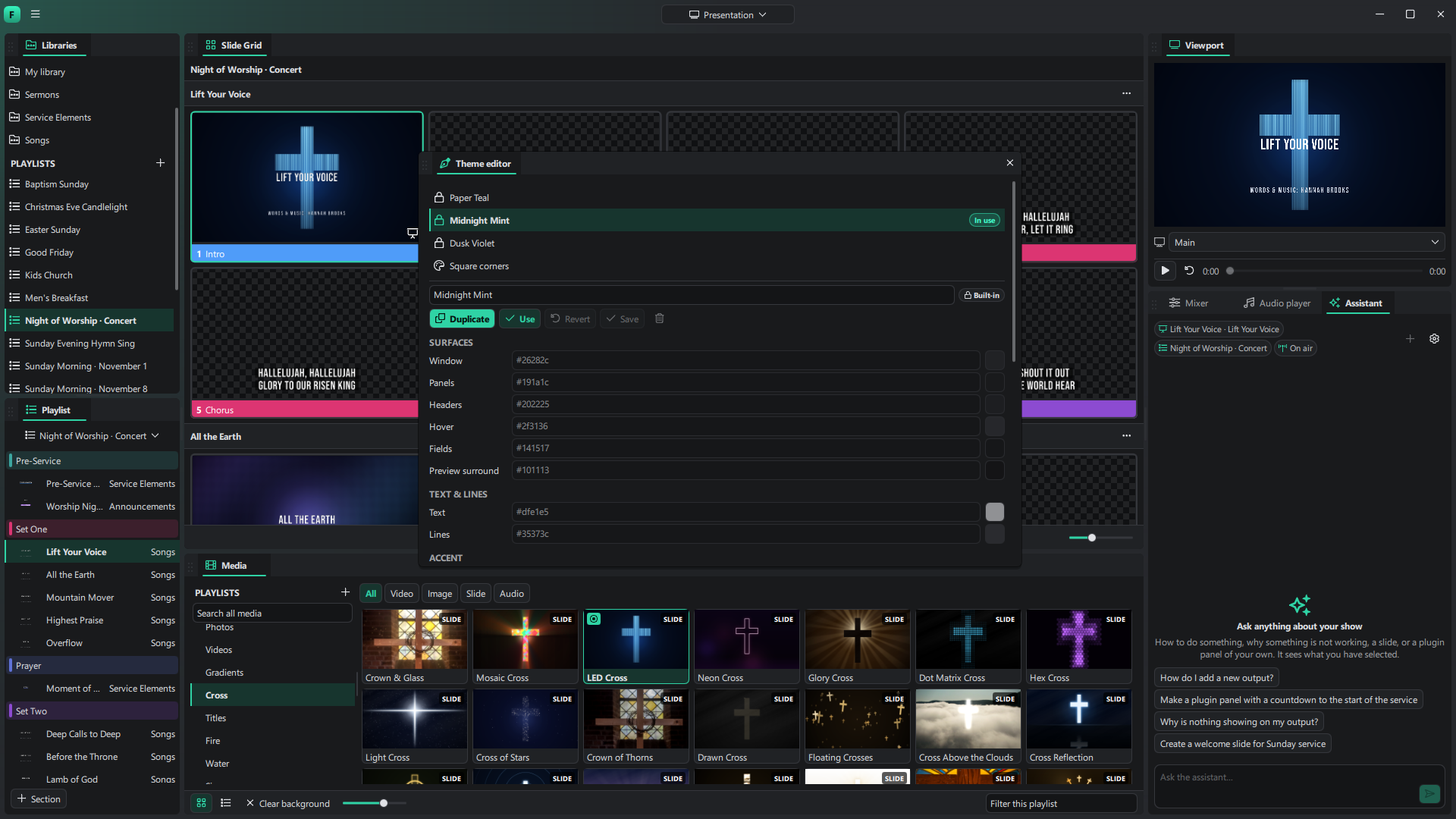
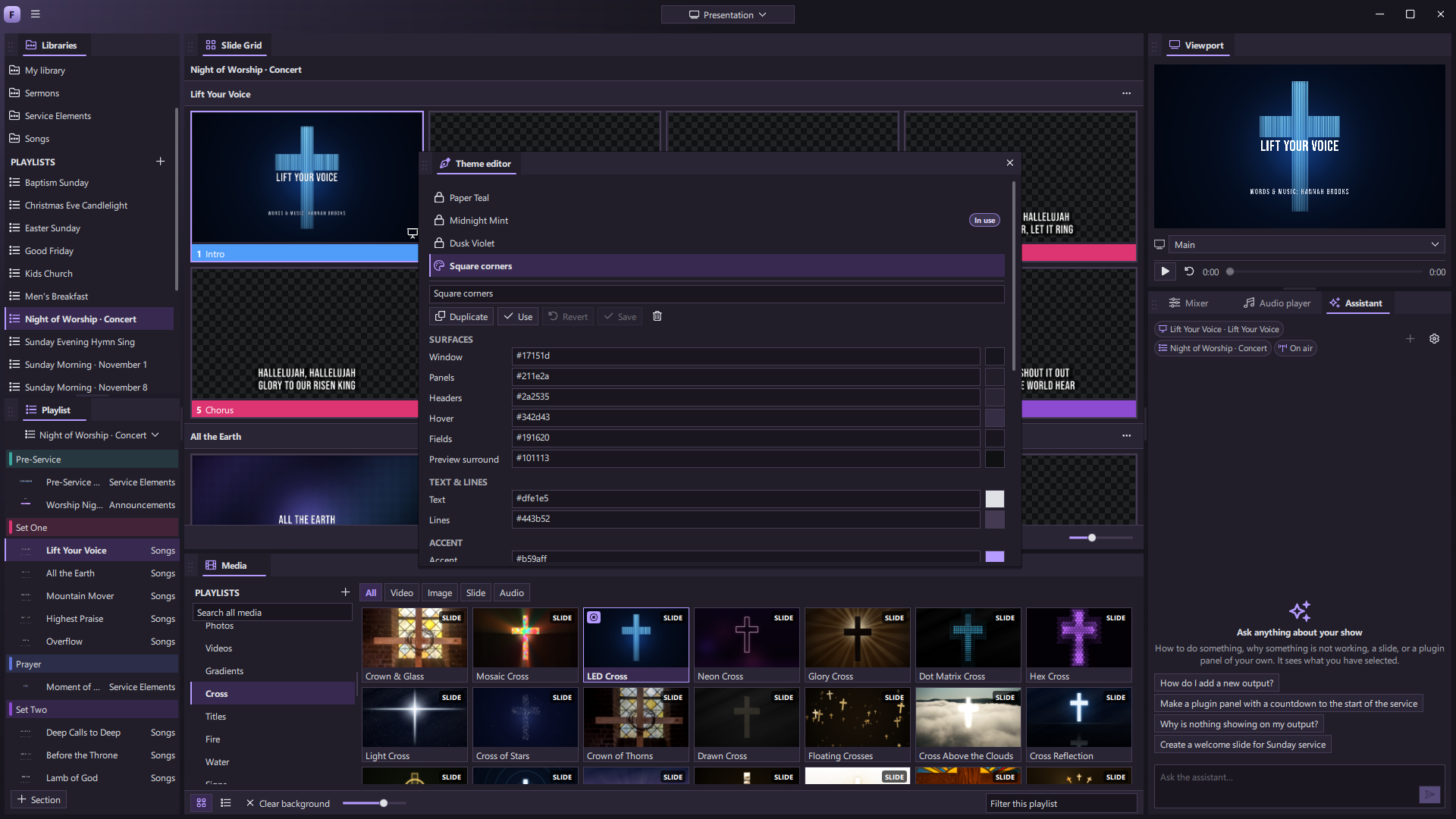
Set the tone of the production desk itself, with appearance themes you can choose, adapt, and create.
A look for your desk
Switch between bundled appearance themes, including dark, violet, and light palettes.
Create your own
Duplicate a theme and make it fit your venue, team, or way of working.
Tune the details
Choose surfaces, text, accents, typography, spacing, shapes, and menus.
See changes live
Preview the new look across the interface while you edit it.
Keep your favorites
Save and use your own themes alongside the built-in collection.
Separate from show artwork
Change the operator’s interface without changing the slides your audience sees.
Make the tool your team wishes existed.
ForShow is meant to grow with the people who run the show.
Read about extensibilityAsk the assistant
Get help in context, draft a slide, or describe a panel you wish you had.
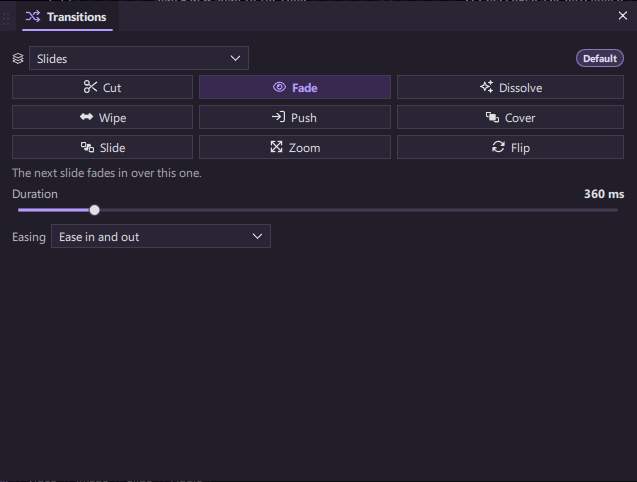
Write custom panels
Create a focused QML tool for your workflow and dock it with everything else.
Edit scripts live
Change a plugin in the app and reload it without rebuilding the whole workspace.
Automate the details
Combine slide actions, macros, timers, MIDI, and a recorded timeline.
Make cues repeatable
Build a macro for the steps your team runs every week and launch it from the show.
Connect the control desk
Map hardware controls and timecode to the moments that need to happen on cue.
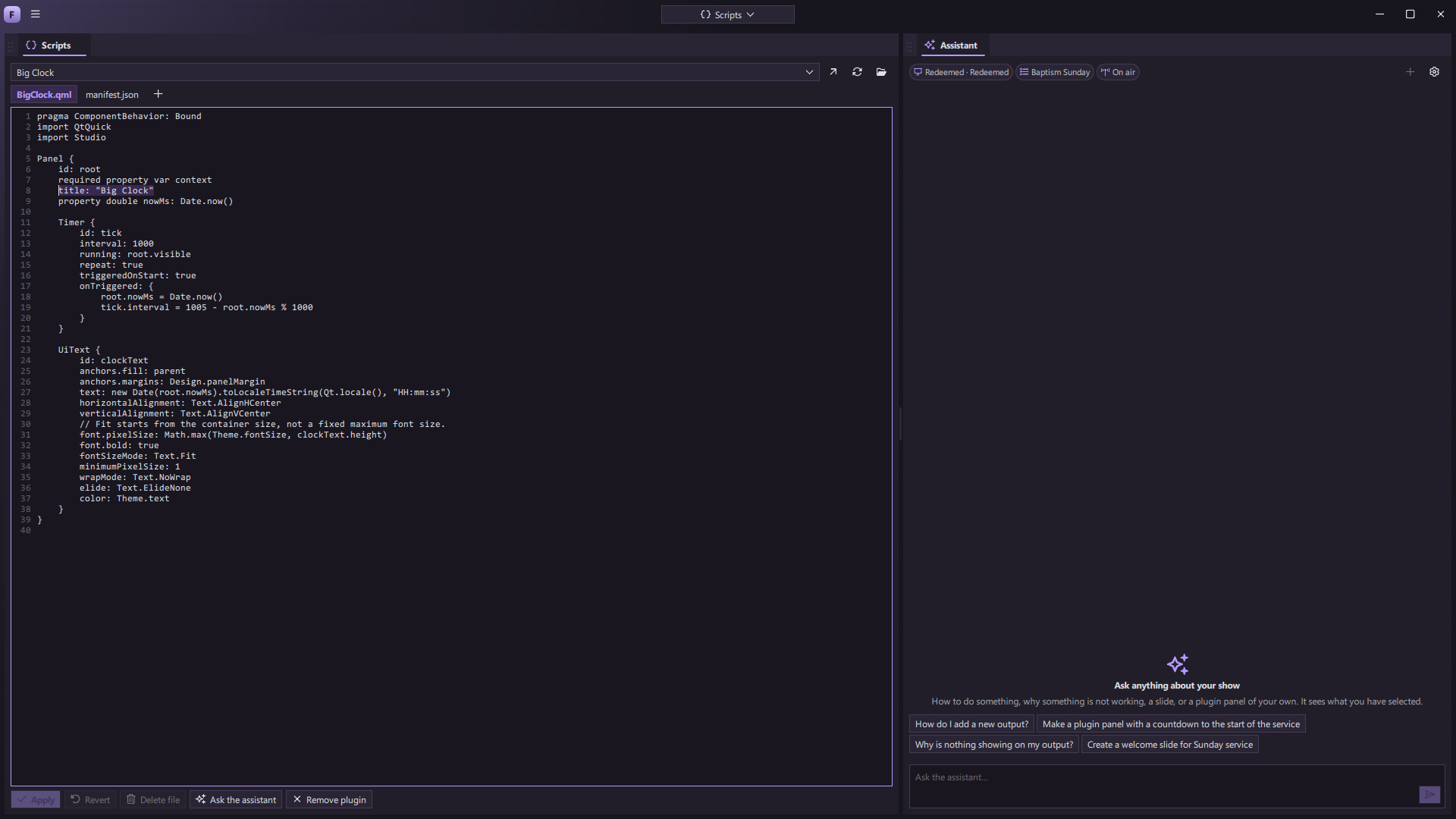
Shape how the picture arrives and fits.
Creative freedom meets
show-day confidence.
Design where you present
Make a change in the same space that runs the live program, with no round trip to another creative app.
Give each screen a purpose
One event, many audiences. Let the room, stage, and stream each see the picture made for them.
Grow without starting over
Rearrange the desk, automate a repeated task, or build the panel your team has always wanted.
ForShow is in development. The screenshots show the current app, and features will continue to grow before release.
Make room for what’s next.
ForShow is coming to Windows, macOS, and Linux. Follow the ideas, features, and progress behind a new generation of live production.